In BricsCAD® V23, the AI Assist Ribbon Panel suggests the commands you will likely need next based on your workflow patterns. The ribbon learns as you use BricsCAD, and it will give you suggestions based on how you and users like you use BricsCAD – saving you time searching for the command you need next!
How to access the AI Assist Ribbon Panel in BricsCAD®
The AI assist Ribbon panel has two states – an empty state and a populated state. When the ribbon panel is populated, it will include personalized command suggestions.
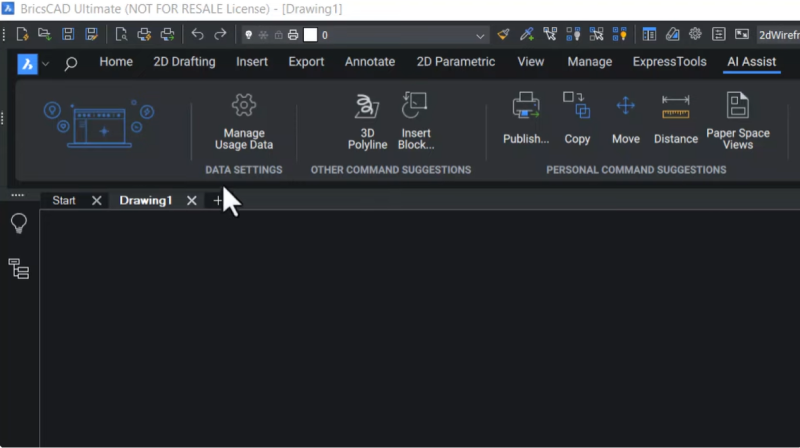
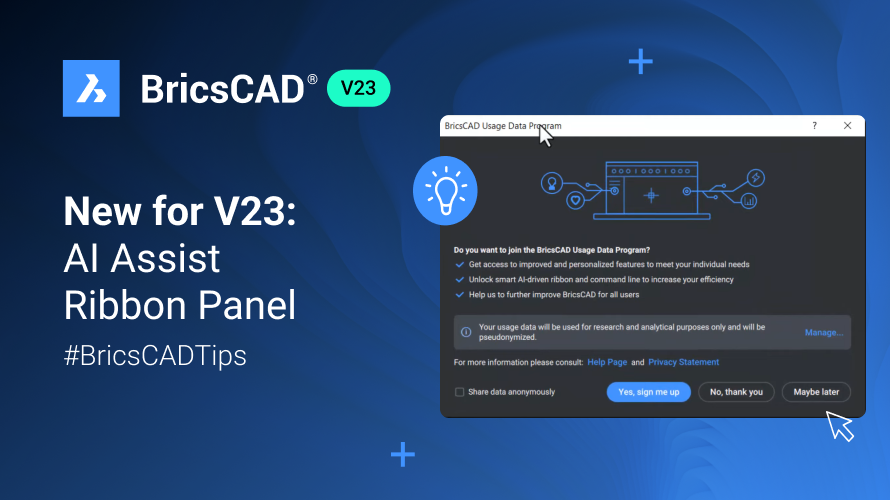
To access the populated ribbon, you must first sign up for the BricsCAD® Data Program. When you sign up for this, you can:
- Get access to improved and personalized features to meet your individual needs
- Unlock the smart AI-driven ribbon and command line to increase your efficiency
- Help us to improve BricsCAD for all users further
To sign up for the BricsCAD Data Program, click the "Joint Usage Detail Program" button under the AI Assist tab. Once you click on this, the BricsCAD Usage Data Program dialog box will appear.
The BricsCAD Usage Data Program
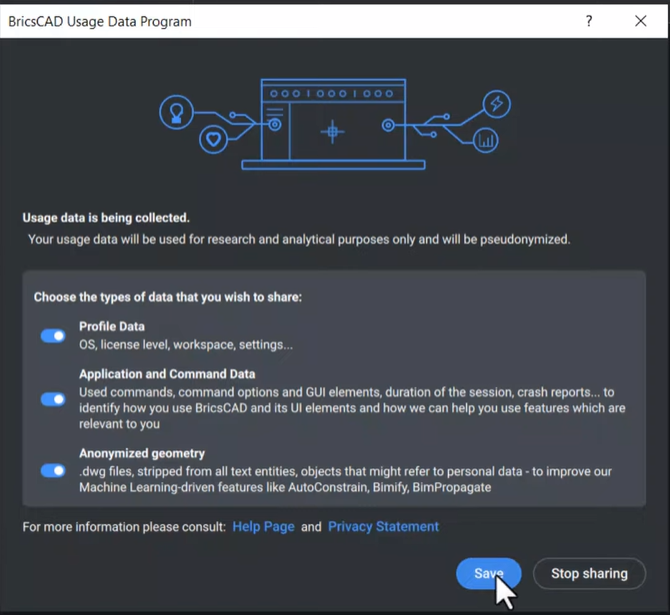
When you sign up for the BricsCAD Usage Data Program, BricsCAD will use your usage data for research and analytical purposes only, and your data will be pseudonymized. You can also share your data anonymously by checking this option in the dialog box.
You can withdraw from the program anytime and have your data removed from the Bricsys database. You can choose the data you want to share by clicking the "Manage..." button.
Choose what you want to share by toggling the following options on or off; all three options are selected by default.
Profile Data - includes information like what operating system you're using, your license level, workspace, and settings.
Application and Command Data – This will collect information about your used commands, command options and GUI elements, session duration, and crash reports. This data helps identify how you use BricsCAD and its UI elements and how we can help you use features relevant to you.
Anonymized Geometry – drawing file information. This data includes .dwg files, stripped from all text entities and objects that might refer to personal data, and is used to improve BricsCAD's Machine Learning-driven features like AutoConstrain, Bimify, and BimPropagate.
Click on "Yes, I agree" to sign up, and you can log in with your account. If you don't have an account already and want to create one, you can choose to sign up. Otherwise, you can log in as a guest.
Click on the "Remember Me" check box, and you will be signed in automatically each time you launch BricsCAD.
Once you've been using BricsCAD for a while, after you sign up for the BricsCAD Usage Data Program, BricsCAD populates the AI Assist Ribbon Panel with personalized comments and suggestions.
Other command suggestions are command suggestions from BricsCAD.
Personal command suggestions are your frequently used commands made easily accessible
How to manage what data you share with Bricsys
If you want to change what data you are sharing, click on the "Manage Usage Data" button on the Data Settings portion of the AI Assist tab . Here, you can choose what you want to share by toggling the options on or off. When you're happy with your selection, click "Save" .
If you want to stop sharing your data with us, click "Stop Sharing." If you stop sharing your data, the AI Assist Ribbon Panel will revert to its empty state.
观看视频!
Check out the YouTube tutorial to watch the AI Assist Ribbon Panel in action!
Have you used the AI Assist Ribbon Panel and have some ideas or suggestions?
太棒了!我们很高兴听到你对 BricsCAD® 的看法 – 欢迎所有反馈,无论好坏。告诉我们您对 BricsCAD 的看法的最好方法是向我们发送支持请求,我们的支持团队将很乐意为您提供帮助。
想要更多 BricsCAD 提示和技巧吗?
如果您对在 BricsCAD® 中还能做什么感到好奇,请查看我们的 YouTube 频道,您可以在其中了解有关 BricsCAD 功能和命令的更多信息,或者查看 Bricsys 博客的其余部分。

Octave BricsCAD 团队致力于为您提供实用的技巧、窍门、操作指南和行业见解,以便您可以充分利用 BricsCAD。