Octave BricsCAD V26 delivers 18 exclusive features that remove friction from your daily workflows, from faster 3D editing and smarter block reuse to improved point cloud handling and Open BIM alignment. These practical updates show their value by saving you clicks and time spent finding workarounds and re-creating your hard work.
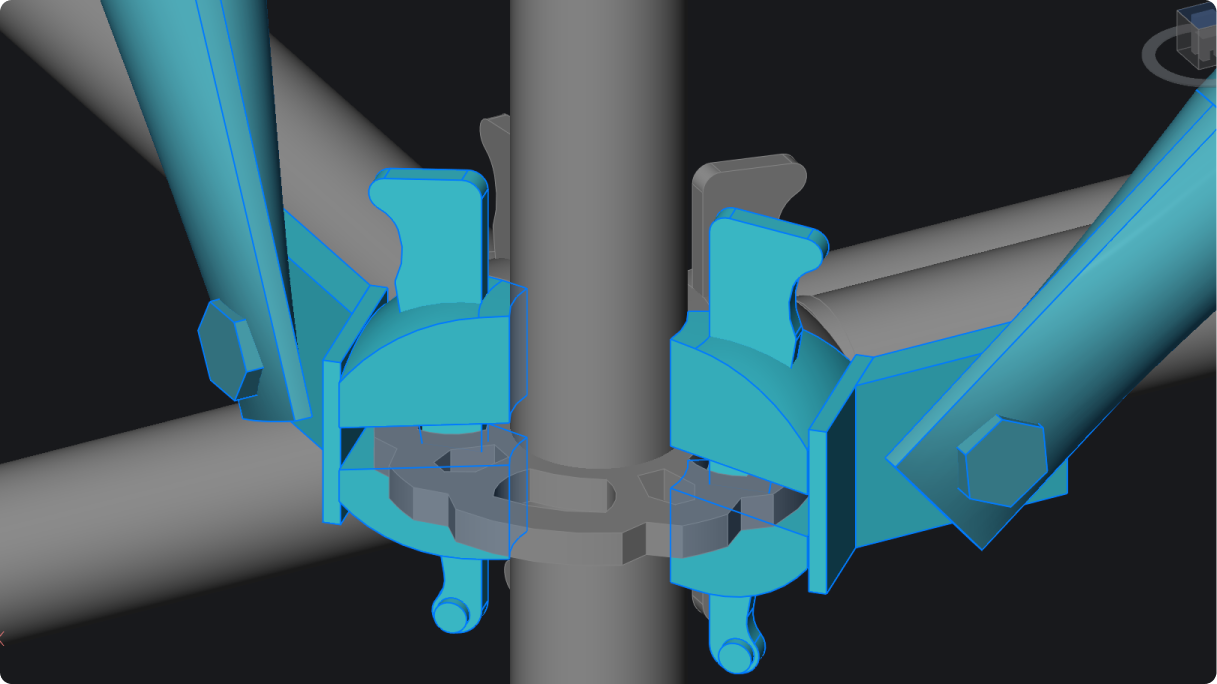
Fillet and chamfer for all component edges – NEW
Apply fillet or chamfer to all edges of a selected 3D solid in one action. Instead of selecting edges one by one, you just choose the solid and apply.

Flatshot through command line – NEW
Create 2D representations of 3D geometry directly through the command line. This is useful for automation, scripting, and repeatable documentation workflows.

Block creation from section plane – NEW
Generate a 2D section block directly from a section plane and skip manual tracing to move straight to usable drawing output.

Centralized point cloud management – ENHANCED
Manage point clouds with previews, thumbnails, and search. You can quickly locate datasets and keep large projects organized.

Advanced settings for geographic location – ENHANCED
Simplified interface for defining and editing geographic location means less friction when working with georeferenced drawings.

Geographic Location through command line – NEW
Set or update geographic data via command line or scripts and standardize location setup across projects or automate it entirely.

Methods for font mapping – ENHANCED
Improved rules for font substitution ensure consistent text display across different systems and drawings.

Insert menu standardized for block types – ENHANCED
One consistent interface for inserting all block types reduces confusion and keeps workflows predictable.

Drawing Explorer block search – NEW
Search and manage blocks across your drawing. You’ll find existing content faster instead of re-creating it.

Faster geometry selection with Quick Select – ENHANCED
Enhanced filtering allows selection of multiple entity types to enable you to build and refine selection sets more efficiently.

IFC4x3 support for classification and export – NEW
Support for IFC4x3 classification and export means better alignment with infrastructure and plant workflows.

Blockify in Create Block Definition dialog box – ENHANCED
Detect repeated geometry and convert it into reusable blocks during block creation, helping you to reduce duplication and clean up drawings automatically.

2D Geometric constraint symbol grouping – NEW
Group constraint symbols for improved clarity and performance and keep complex parametric drawings readable.

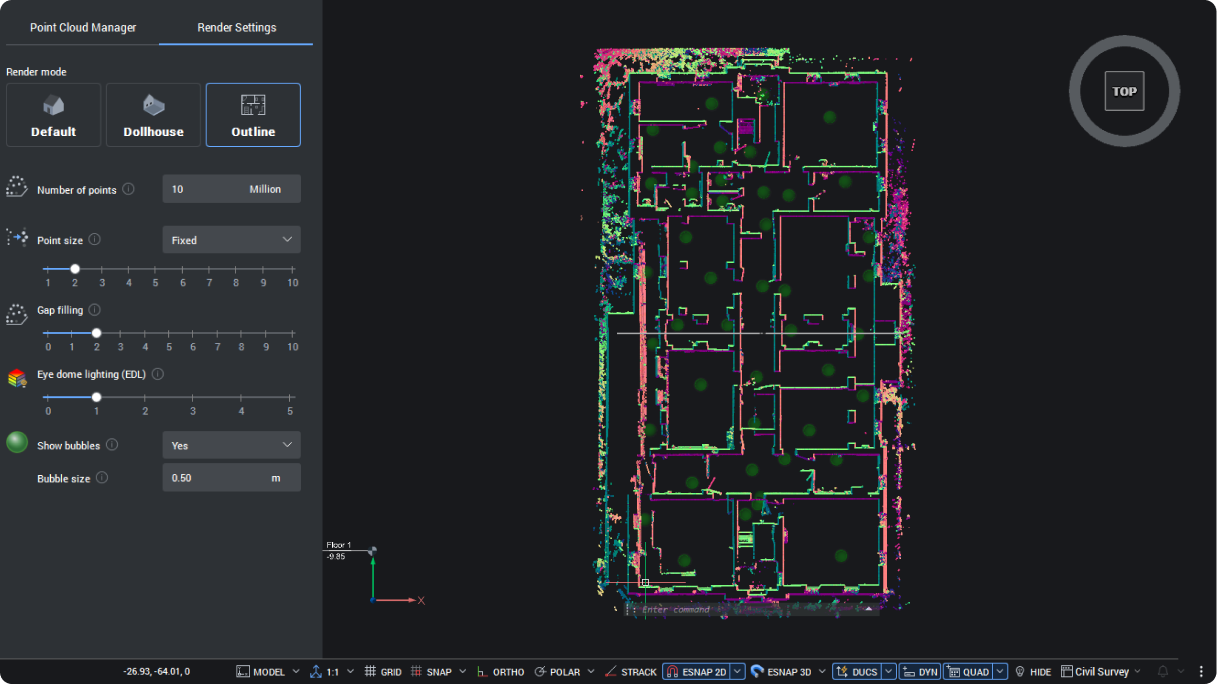
Outline for Render mode – NEW
Highlight outer shapes of point clouds using an outline filter and improve visibility when working with dense scan data.

Project collaboration with shared data – ENHANCED
Accessing shared project data like spatial locations and compositions helps you work more efficiently across teams and disciplines.

Industry-based project classification and alignment – ENHANCED
Align project data with industry-standard classification systems and improve your consistency across projects and stakeholders.

BIM blocks for building components – ENHANCED
Create or convert blocks into BIM-aware components with embedded data, combining geometry and information in a single workflow.

2D polyline tracing on point clouds – NEW
Trace polylines directly over point clouds with minimal input and turn scan data into usable geometry quickly.

Meaningful upgrades, lasting wins
BricsCAD V26 focuses on practical improvements that remove friction from everyday work. These 18 exclusive features make the tools you already use faster, clearer, and easier to control.
Discover everything new in V26
These are just a few of the many new and enhanced features in BricsCAD V26. Explore the full V26 feature list to see what else has improved. And if you haven't already, try BricsCAD V26 today.

The Octave BricsCAD Team is committed to delivering you practical tips, tricks, how-to's, and industry insights - so you can make the most out of BricsCAD.