
When you start a new CAD drawing, the first thing you'll probably want to do is draw a line and the second you've done it, you'll probably want to edit that line! The good news is that whether you're adding a new vertex or editing the bulge value, BricsCAD® gives you plenty of ways to edit a line or a polyline.
1) The Quad
Use the Quad to add a vertex to a polyline, adjust the bulge of a segment, delete a segment or stretch a segment.
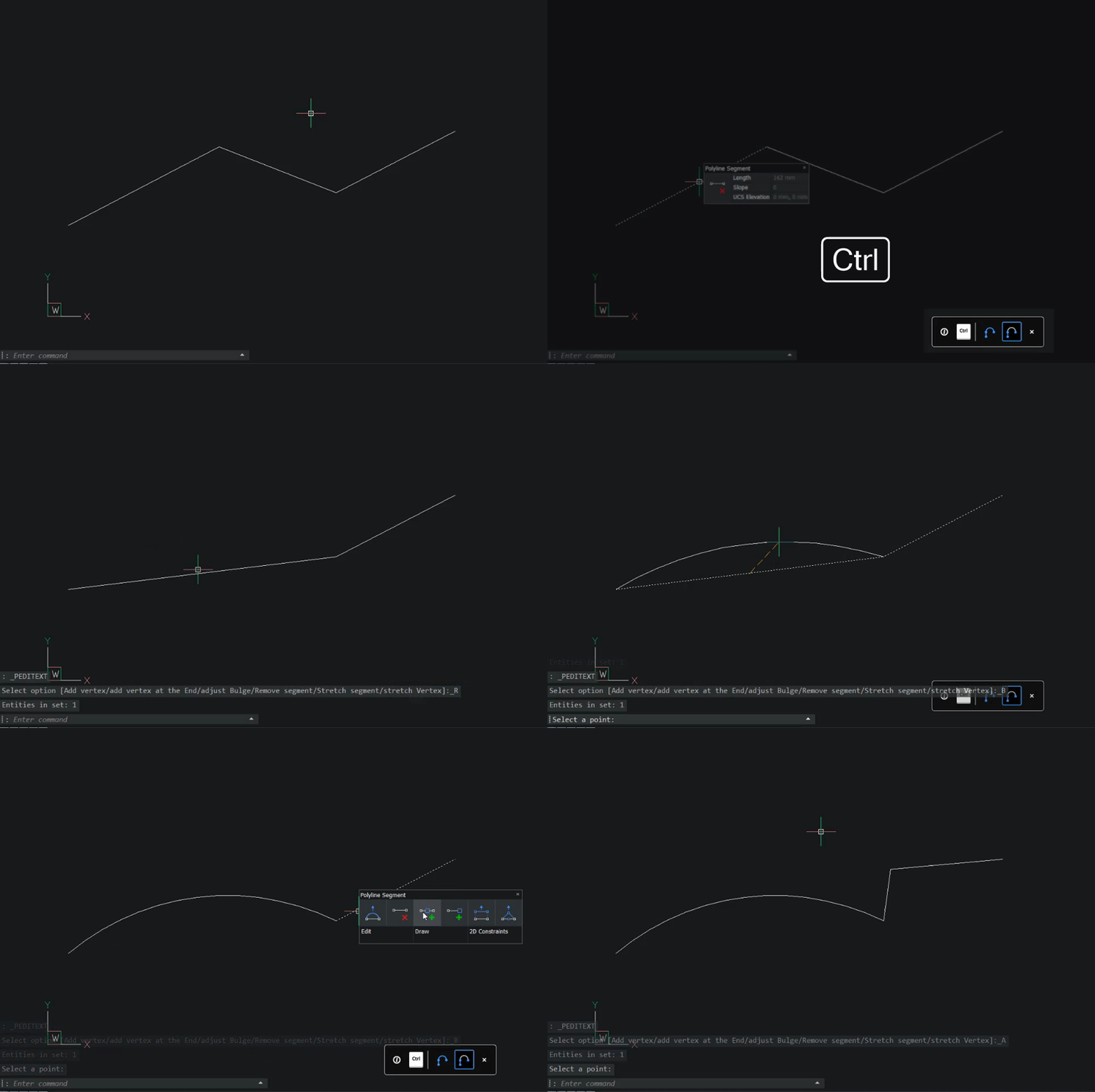
How to edit a polyline in BricsCAD using the Quad:
- Turn the Quad On.
- Move the cursor over the polyline.
- Hold Ctrl.
- Move the cursor to the Quad and select a command.
- Edit the polyline.
2) PEDIT
Use PEDIT to edit vertices, convert segments between arc and straight, break a polyline, reverse the direction, insert and delete a vertex, change the width of a segment and convert splines into polylines.
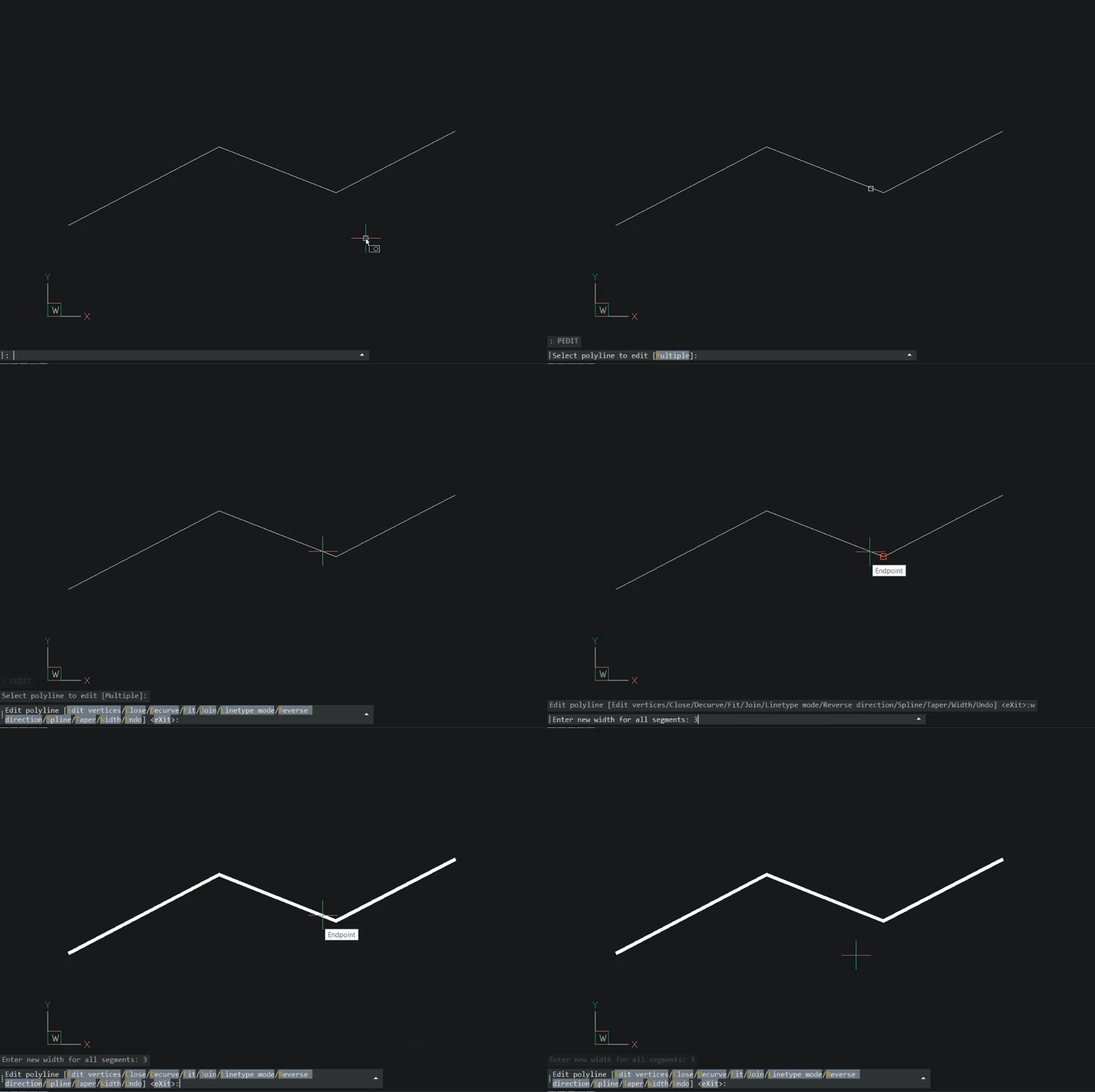
How to edit a polyline with the PEDIT command in BricsCAD:
- Enter PEDIT.
- Select the polyline.
- Choose from the options.
- Follow the instructions in the Command line.
3) The Properties Panel
Use the Properties Panel to edit your polyline and get extra information, such as the number of vertices and the elevation. You can change the width and bulge of polyline segments to make the polyline closed, open, and more.
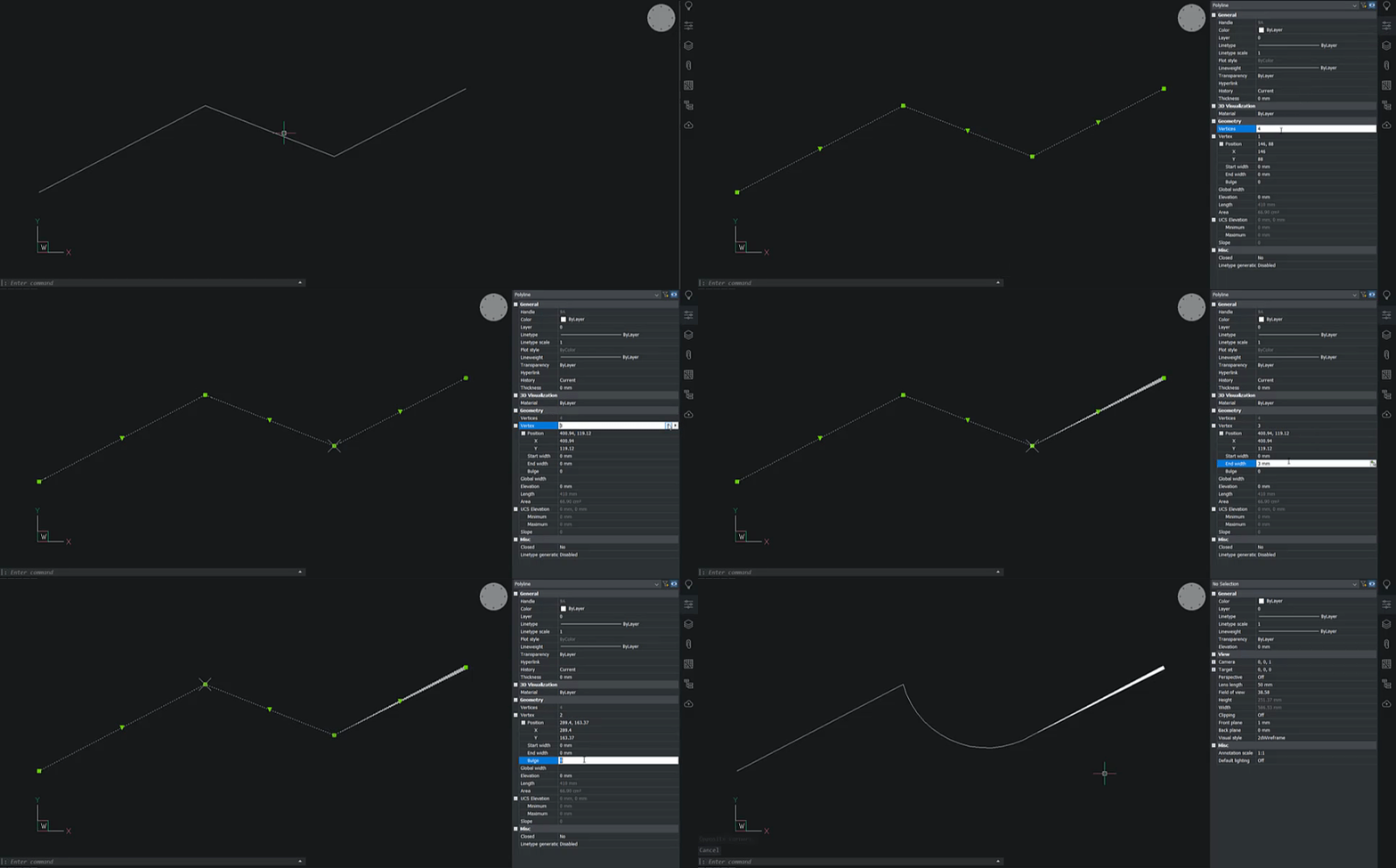
To edit a polyline with the Properties Panel:
- Select the polyline.
- Open the Properties Panel.
- Use the options to edit the polyline.
4) Simplify
Sometimes polylines become more complex and memory-intensive than you would like. Use the SIMPLIFY command to reduce the complexity of a polyline.
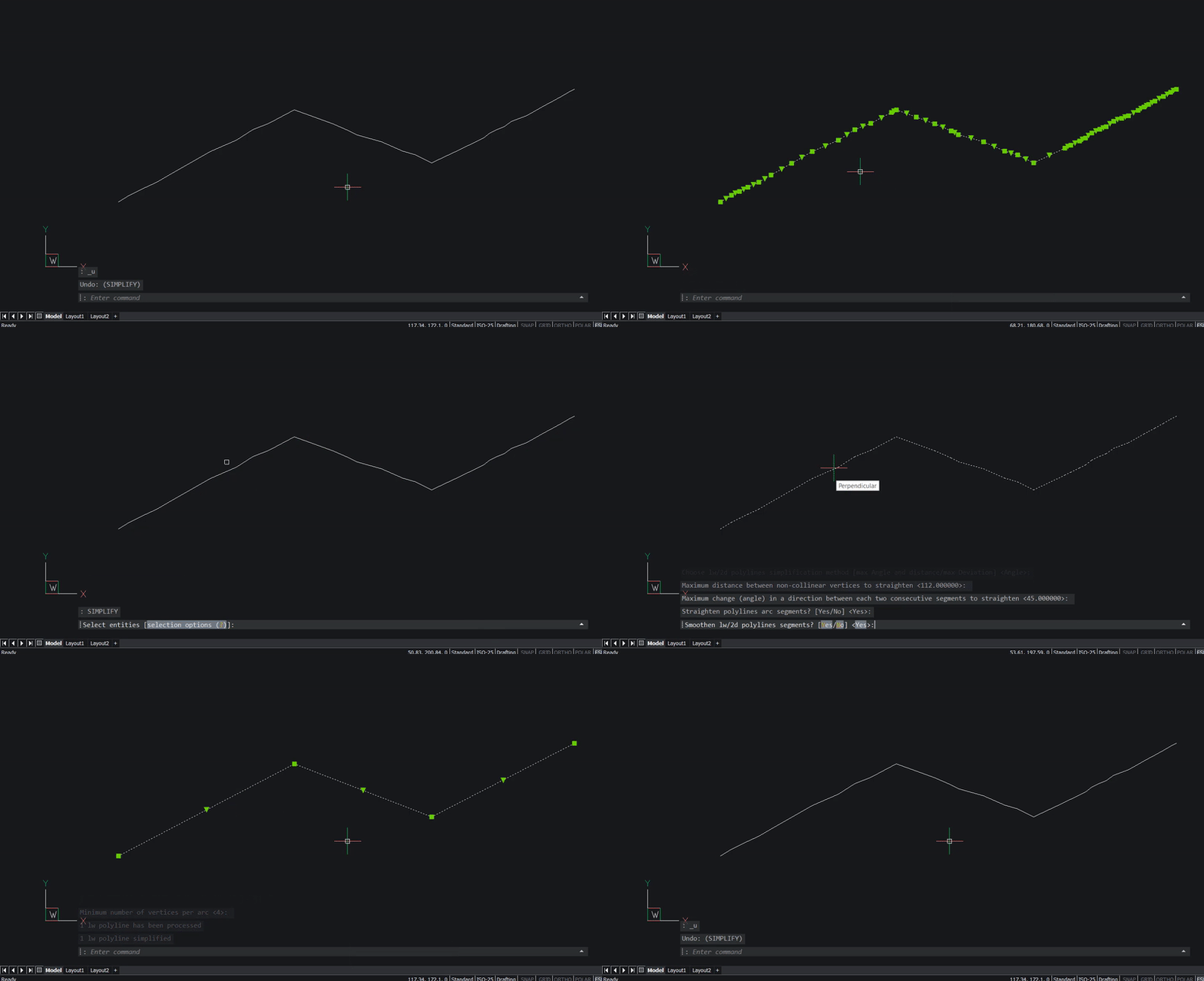
How to reduce the complexity of a polyline in BricsCAD with SIMPLIFY:
- Enter SIMPLIFY.
- Select the polyline.
- Choose your tolerance options in the Command line.
5) With commands
Use commands such as TRIM, EXTEND and JOIN (which do exactly what they say on the tin) to edit polyline lines.
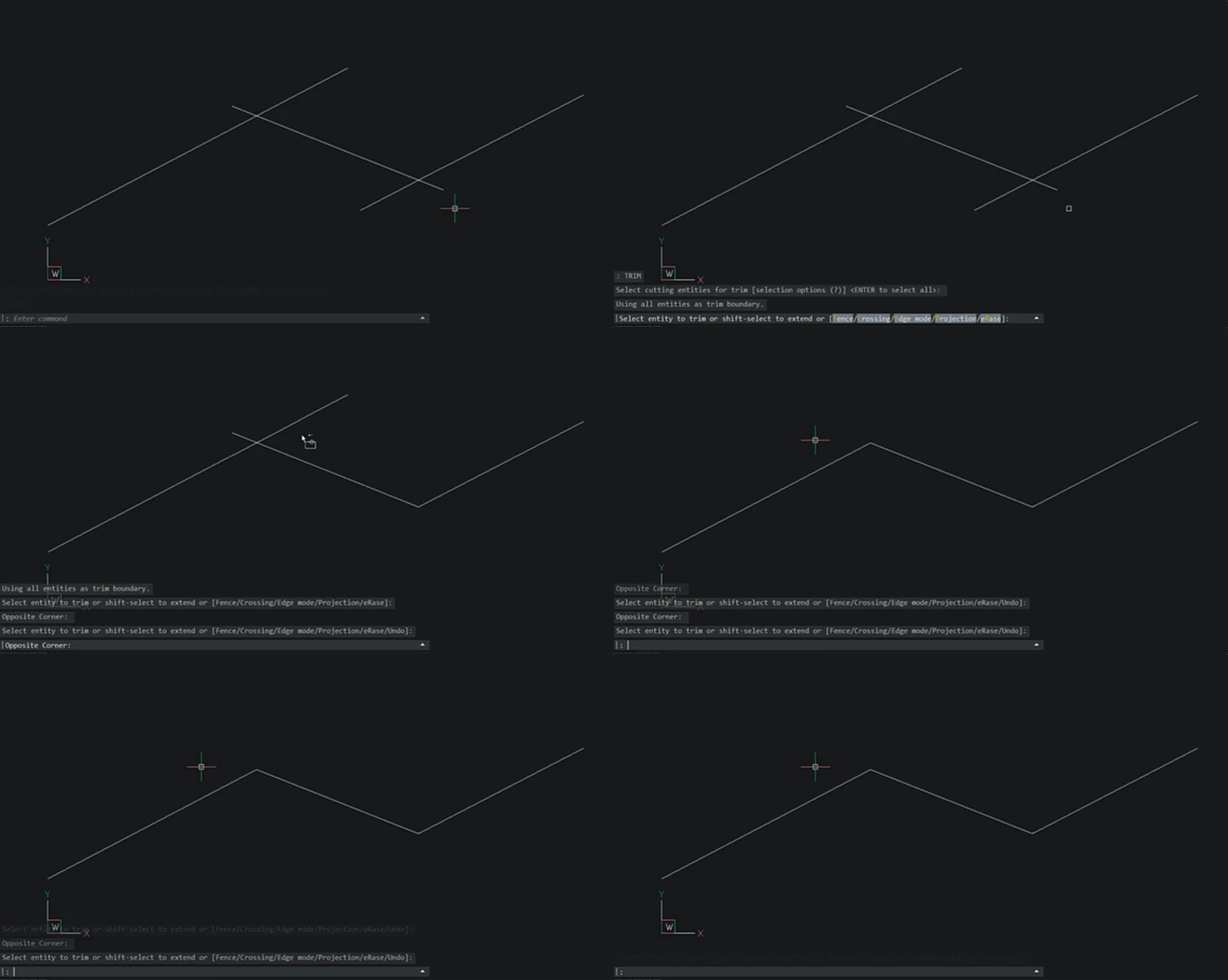
How to trim a polyline in BricsCAD:
- Enter TRIM.
- (Optional) Select cutting entity/entities.
- Click the line to be trimmed. The section will be deleted to the nearest cutting entity.
- (Optional) Hold Shift to extend instead of trim.
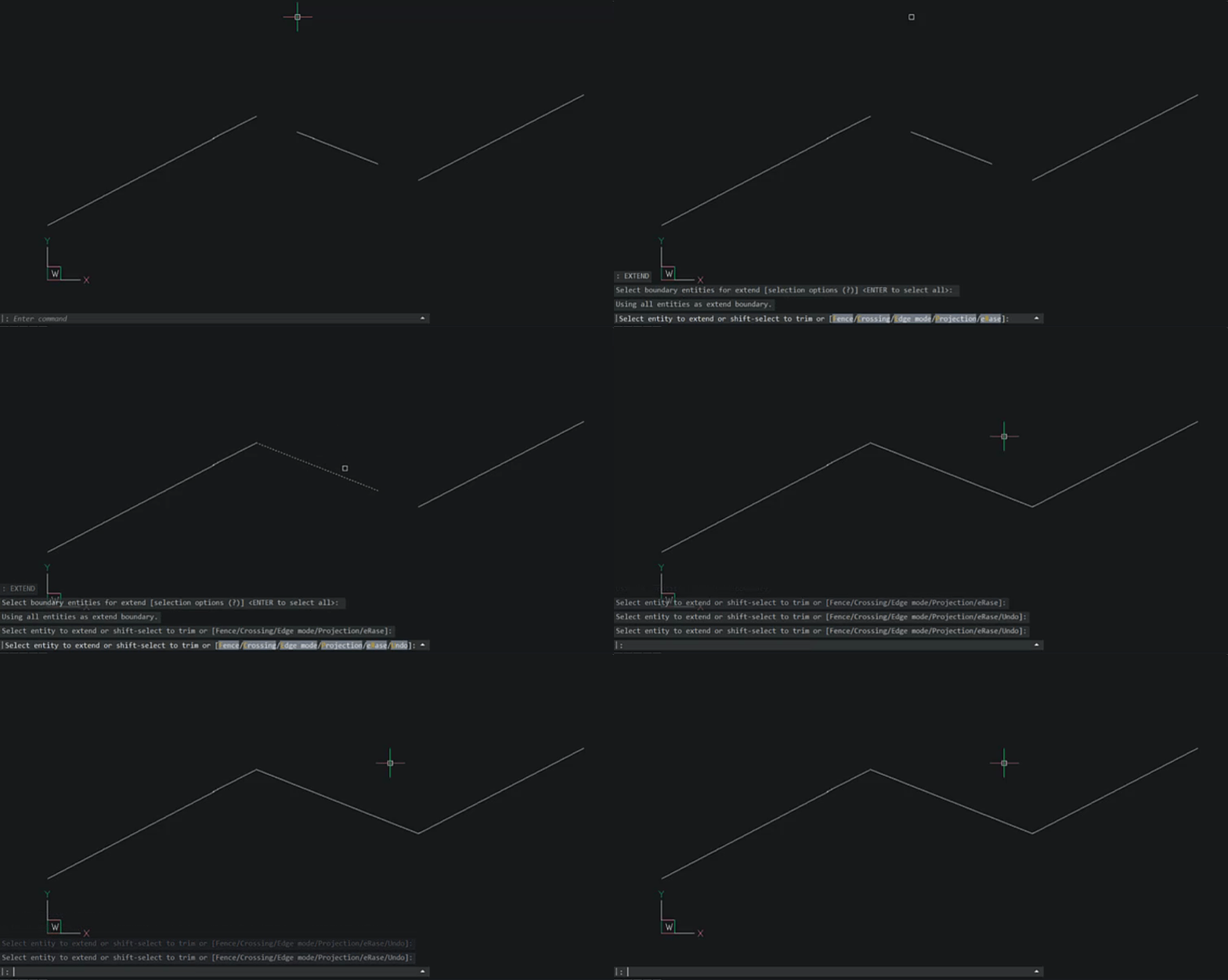
How to extend a polyline in BricsCAD:
- Enter EXTEND.
- (Optional) Select boundary entity/entities.
- Click the line to be extended. The section will be extended to the nearest cutting entity.
- (Optional) Hold Shift to trim the line instead of extend.
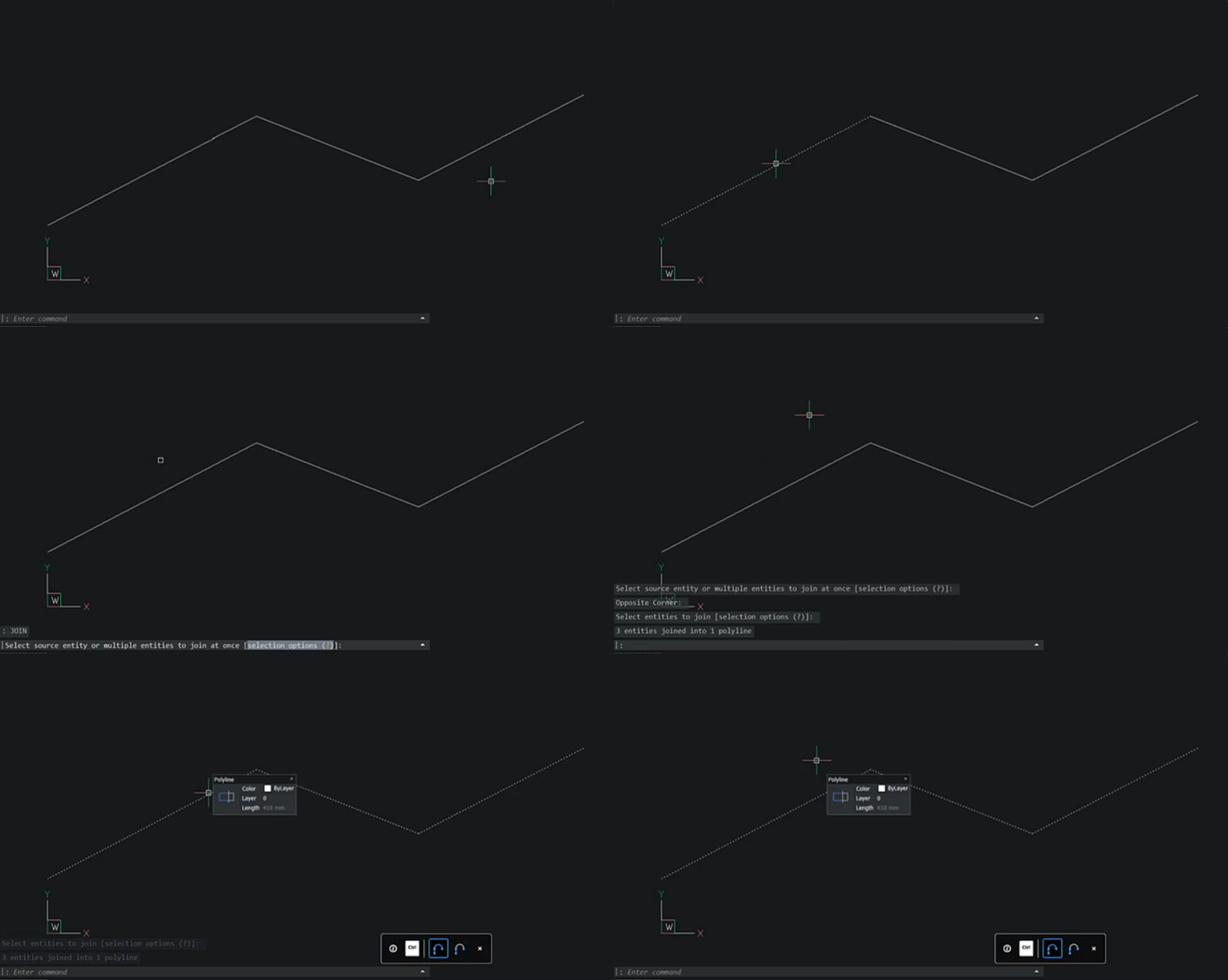
How to join polylines in BricsCAD:
- Enter JOIN.
- Select the entities to be joined.
- Press Enter.
Note: polylines must be touching.
How else do you edit polylines in BricsCAD?
JOIN.
Know any ways that I have missed off the list? Let me know in the comments below.
Happy CADing!
Explore BricsCAD
Download BricsCAD Free Trial | Sign Up For News & Updates | Shop Online For BricsCAD Desktop Software

Rose is responsible for taking user feedback and improving the BricsCAD product. Before coming to BricsCAD, she was a CAD user and worked in the Automotive, Aerospace, and Defense industries as a Technical Illustrator. She loves finding out how things work, taking them apart, and (hopefully) putting them back together again.
