Welcome to BricsCAD®
The true CAD alternative
5 steps to make the most of your BricsCAD trial, from customizing the interface to testing unique features to accelerate your workflows.
Get started
Your journey with BricsCAD



Set up BricsCAD the way you want
Migrate customizations and other files to BricsCAD and personalize your workspace.

Discover the true CAD alternative
Test BricsCAD’s unique features to accelerate your design-to-production process.

Choose the right license for you
Compare BricsCAD licensing options and product levels to choose the best fit for you.
Step 1
Get familiar with BricsCAD
Resources

AutoCAD® to BricsCAD
Key similarities and differences between AutoCAD® and BricsCAD.

BricsCAD Essentials
Quick overview of BricsCAD’s main features and capabilities.
Feature comparison
Comprehensive list of BricsCAD features, by product level and compared to AutoCAD®.
Step 2
Find answers to your questions
Learn more about BricsCAD in the Help Center and blogs, and connect with other users in our Forum.

Resources

Help Center
Product documentation, command reference, knowledge base, and additional technical resources.

Blog
Tips and tricks to help you work faster and smarter, making the most of the latest tools.
Forum
The community of BricsCAD users sharing best practices for your field.
Step 3
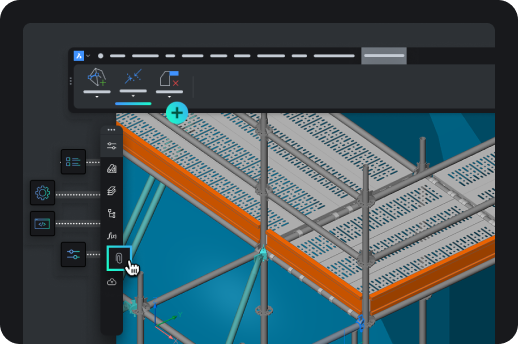
Set up BricsCAD the way you want
Include your favorite tools and settings in your workspace.
Resources

Migrating to BricsCAD
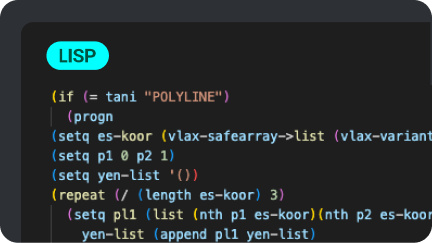
Bring your customizations and other files from AutoCAD® into BricsCAD.

Customizing BricsCAD
Personalize your workspace through interface settings and more.

Third-party applications
Integrate your favorite tools, extend workflows, and add customizations for your industry.
Step 4
Discover the true CAD alternative
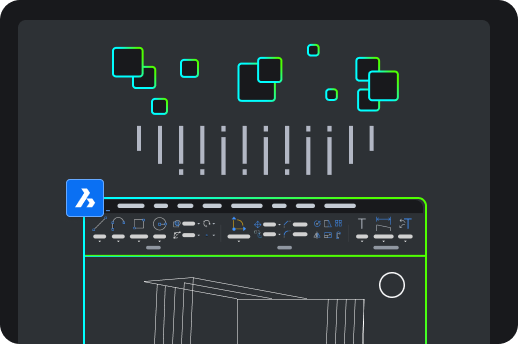
Try out the unique features and AI-driven tools that make BricsCAD the true CAD alternative.
Resources

The BricsCAD Advantage
BricsCAD’s key benefits, from system configuration to advanced 2D drawing and 3D modeling tools.
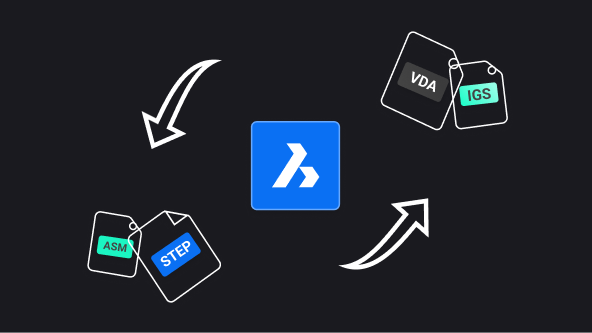
Communicator for BricsCAD
Import/export models and PMI data from other major CAD software.
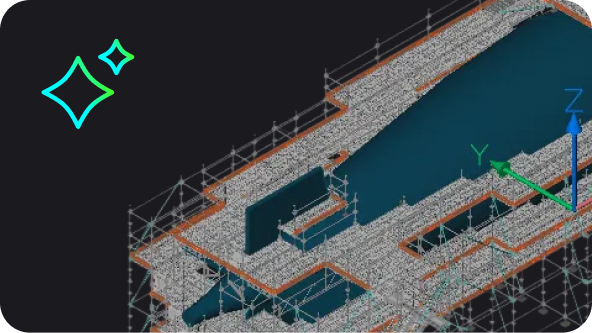
AI-driven tools in BricsCAD
How AI and machine learning in BricsCAD help you reduce clicks, fix files fast, and save time.
Step 5
Choose the right license for you
Compare products levels, explore licensing plans, and contact us with your questions.